The Board (TUI)
Running sand with no arguments opens a terminal UI: a tile board, one
tile per sand-managed VM. There is no table view and no per-VM detail
screen — both were deliberately removed. Every verb fires straight from the
tile under the focus ring.
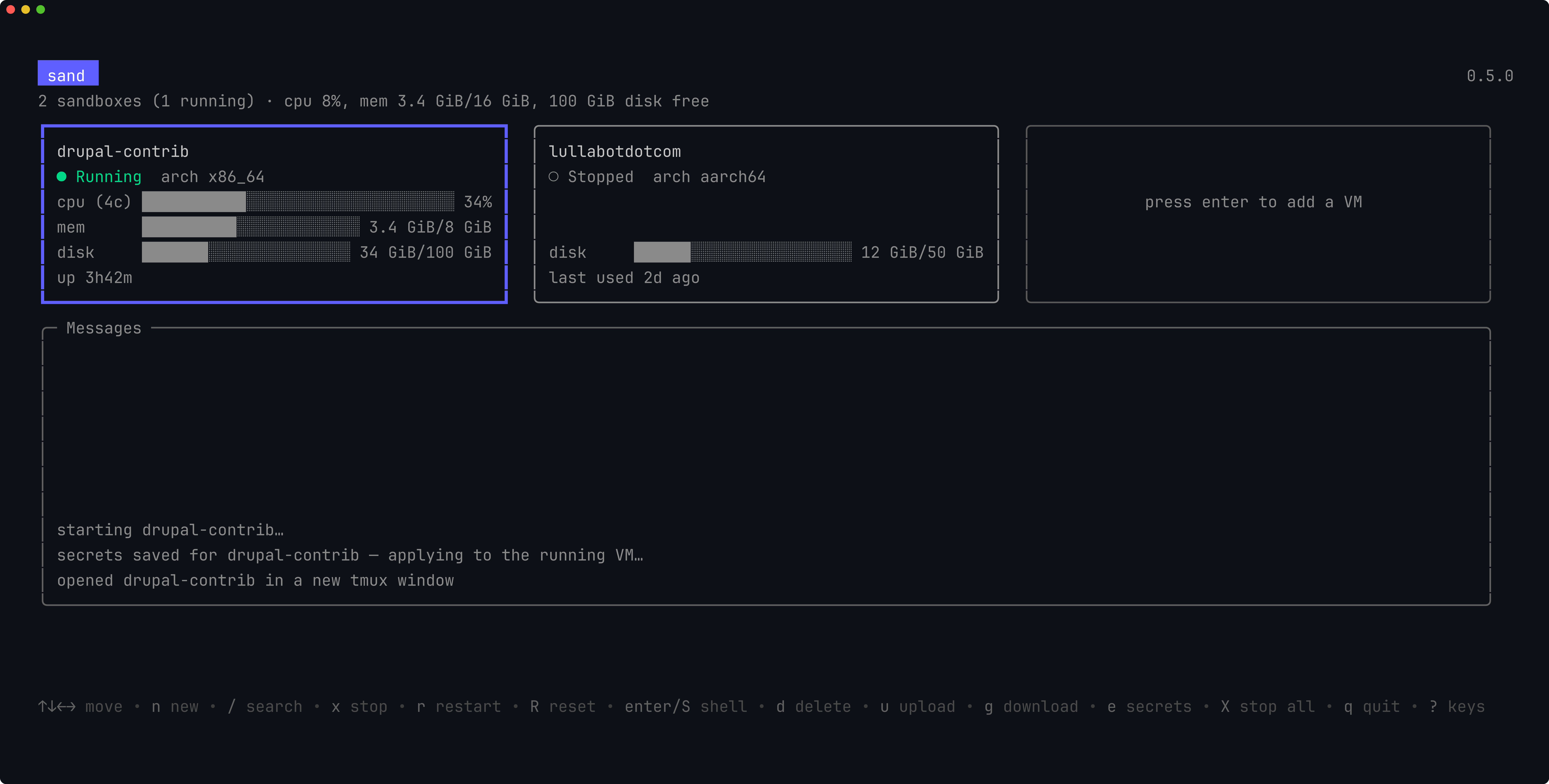
The header
The header shows a live readout of the host(s) you're connected to, not
the VMs: one band per active Connection Profile,
each with CPU and memory currently in use, free
disk on the volume that holds that profile's VMs, and the build's version.
Out of the box that's one band, for the permanent Local profile. Add a
remote or Proxmox profile and a second band appears for it; a profile that's
disabled or errored (unreachable, misconfigured) shows a banner
instead, naming the profile and the reason its tiles are absent. The header
does not count base images or unmanaged VMs — the board only ever shows
sand-managed clones, and the header doesn't either. Manage a base image with
limactl (or the Proxmox UI) directly.
On first launch, sand shows a short onboarding screen before the board. Press
enter to continue; the acknowledgement is saved so it is not shown again.
From the ? help screen, press o to reopen it. Its installed release notes
and feature or bug request links can be clicked in terminals that support OSC 8
hyperlinks, or opened with n and r respectively using your default browser.
The screen also explains the persistent tmux shell; see
Files and Shells for the full tmux and file-transfer
guide. When sand detects Warp (TERM_PROGRAM=WarpTerminal), onboarding warns
that Sand and Claude Code can have terminal compatibility issues there.
Sand checks GitHub for a newer stable release in the background, at most once
per 24 hours. A newer release adds a clickable (Update available!) link
beside the version in the full header; ? then offers n to open those notes
in your browser. A narrow full header drops the update notice before the
installed version, and the entire title row is omitted in compact layouts. Failed
checks are quiet, keep the last valid result, and still use the 24-hour retry
interval. Sand never downloads or installs an update for you.
The tile board
Tiles are sorted alphabetically by name and stay there — a VM changing
status never reorders the board. An empty slot on the board is a "ghost
tile" inviting you to press enter to create a VM.
With more than one Connection Profile enabled, a
tile's title row also carries a small [profile] label naming which
profile that VM runs on — useful since the same VM name can exist under two
different profiles at once. The label is omitted while only the Local
profile is enabled, so a single-profile setup's tiles look unchanged.
Note: the paste-image verb (v) is only shown on running VMs.
Reading memory on a tile
A running VM's memory number prefers the amount the provider reports as resident on
the host or hypervisor, followed by the VM's configured total. For example,
30 GiB/32 GiB means the VM currently occupies about 30 GiB from the host's
point of view. It is not Linux's guest-side used calculation.
For Lima, sand samples the host process backing each VM: QEMU's process or the
macOS Virtualization worker that has the VM's disk open. This is a process RSS
estimate, which can include virtualization overhead. If that host measurement
cannot be obtained, the existing guest memory reading remains visible as
guest mem on the tile and in the host summary, so it is not mistaken for
physical host RAM used by the VM.
The filled memory bar separates the guest's filesystem cache with a patterned
segment. That segment is part of the host-resident total, not an amount added
to it. The two readings are sampled independently, so sand clamps the cache
segment when they momentarily disagree. A guest-only gauge has no cache
pattern because Linux's guest used figure excludes cache. If neither memory
reading is available, the tile shows an unknown value instead of a guessed zero.
Scrolling
The board only draws as many tile rows as the window is tall enough for — in a short terminal that can be a single row. When there are more tiles than fit, a scroll bar appears down the right-hand side: the solid part shows how much of the board is on screen and where in it you are. Arrowing past the edge of the window scrolls the board, so everything stays reachable. There is no scroll bar when the whole board already fits, so seeing one always means there is more.
Builds stream their output into a progress pane, but they keep running in
the background if you navigate away. Leaving the progress screen does not
cancel a build in progress; the job keeps going in the registry, and you can
reopen its log later (l) to see how it finished — including one that
failed while you weren't looking.
Keybindings
Board-level
These act on the board itself, regardless of which tile is focused.
| Key | Action |
|---|---|
↑ ↓ ← → |
Move the focus ring between tiles |
enter (on the ghost tile) |
Create a new VM |
n |
Create a new VM |
p |
Open the Connection Profiles management screen |
/ |
Search / filter tiles by name |
X |
Stop all — every sand-managed VM that's currently running, after a confirmation naming them. A VM sand didn't create, or a base image, is never touched, even if it's running, so a VM you use for unrelated work is safe. |
? |
Show the keys screen |
q |
Quit |
On the focused tile
These fire on whichever tile the focus ring is currently on. Not every verb
is offered on every tile — for example s (start) only appears when the VM
isn't already running, and S (shell), u (upload), and g (download) all
require the VM to be running.
| Key | Action | What it does |
|---|---|---|
s |
Start | Boot the VM. Its host-stored secrets are written into the guest as it comes up. |
x |
Stop | Shut the VM down cleanly. Its disk and its secrets are kept. |
r |
Restart | Stop the VM and start it again, applying any secrets you've changed since it booted. |
m |
Reclaim memory | Flush writes and release the guest filesystem cache. Offered only on a running VM whose provider can return that cache memory to its host; currently this means Proxmox. The tile refreshes its guest cache and host-resident memory readings when the action finishes. |
R |
Reset | Delete this VM and clone it fresh from its base image, keeping its name and sizing. Everything inside the guest is lost; the create form opens pre-filled so you can change the settings first. Only offered for VMs sand created. |
t |
Snapshot → template | Capture this managed VM as a reusable golden template. A running source is stopped briefly and restored afterward. |
S |
Shell | Attach a shell to the guest's persistent tmux session. Work keeps running after you detach (C-a d) or close the terminal. Inside a host tmux session this opens a new window and leaves the board live; otherwise it suspends the board until you detach. See Files and Shells. |
v |
Paste Image | Stage the host clipboard's image on the guest clipboard, ready for Ctrl-V inside any supported coding agent. |
d |
Delete | Delete the VM and its disk, after a confirmation. Its host-stored secrets go with it. Irreversible. |
u |
Upload | Copy a file or directory from this machine into the guest. You pick the source, then the destination directory. See Files and Shells. |
g |
Download | Copy a file or directory out of the guest onto this machine. See Files and Shells. |
e |
Secrets | Edit this VM's secrets. Saving writes them into a running guest immediately; a stopped one gets them on its next start. See Secrets. |
l |
Land | Open the Landing pane: list this VM's git checkouts and their branch/push/PR state, and open a one-shot draft PR, the branch's page in a browser, or — for a checkout on a drupal.org remote (git.drupalcode.org or git.drupal.org) — publish its local commits to drupal.org. See Landing and Publishing to drupal.org. |
L |
Log | Reopen the log of this VM's last build or file transfer — including one still running, or one that failed. |
The create form includes a clone-source row. Choose the shared base or a template in the selected profile; template rows show their size, age, and staleness. A template-sourced reset keeps using that same template.
For an initial checkout, enter its HTTPS Repository URL. The Git service
row detects GitHub and GitLab.com automatically. Focus it and press space
or ←/→ to choose GitLab for a self-hosted instance; enter advances to
the masked Clone token field. The token help follows the selected service.
See Secrets for token permissions.
d is always delete, on every screen — the most destructive key never
changes meaning under your fingers. Download deliberately does not use
d; it's bound to g instead.
Reclaiming memory is explicit and does not resize or reboot the VM, stop its services, or promise an exact number of bytes. Linux can retain mapped pages, shared memory, and kernel allocations that are still in use. Lima does not offer the action because dropping cache inside its Linux guest does not reduce the VM footprint reported by macOS.
The unlanded-work badge
A tile whose checkouts have been swept recently carries a small badge on its footer row naming git work that has not yet reached a PR:
- Actionable (amber,
⚠ actionable) — at least one checkout has a pushed branch of its own, so a PR is onel(Land) away. A checkout sitting on its repo's default branch doesn't count: a fresh clone is "pushed" in the literal sense but has nothing to turn into a PR, so it never lights the badge. -
At-risk (
↑N,unpushed, and/ordirty, shown dimmed) — work that may be lost if the VM is deleted.↑Ncounts commits absent from every remote-tracking branch in the guest.unpushedmarks a branch that has never been pushed, anddirtymarks uncommitted changes.Comparing against all remote-tracking branches avoids counting upstream commits brought in by a rebase as your unpublished work. The count uses the guest's local Git records; it does not query remotes.
The badge shows nothing for a VM that has never been swept, is stopped, or whose last sweep is stale — it never guesses.
The delete guard
Pressing d on a VM whose checkouts hold work the registry has seen adds a
line to the confirmation naming what's at stake: unpushed commits and
uncommitted changes as "lost on delete", and pushed-but-PR-less branches
as "safe on GitHub". This reads only the host's own cached checkout
registry (the same data the badge above uses) — it never contacts the guest
to refresh it, so confirming delete on a VM you suspect is compromised never
triggers a round-trip into it. On a stopped VM the warning is labeled with
how long ago that data was last seen (as of 3d ago), since a stopped guest
cannot be re-swept.
For the full set of sand subcommands and flags (including sand shell),
see the CLI Reference.
Connection profiles
p opens the profile management screen — a list of every
Connection Profile sand knows about (Local plus
any remote hosts you've added), with keys to create, edit, enable/disable,
and delete them. Every change there is live: enabling a profile builds its
connection and starts showing its tiles immediately, with no restart.
The create form (n, or enter on a ghost tile) also has a profile
selector when more than one profile is enabled, so you pick which profile a
new VM is created on without leaving the TUI. See
Connection Profiles for the full model.
Resetting a VM
The create form has independent Install Claude Code, Install OpenAI Codex, Install OpenCode, and Install Pi checkboxes. New VMs start with your last submitted choices (initially all off); reset starts with the choices recorded for that VM and does not change global preferences.
Press R on a managed VM's tile to open the Reset VM form, filled with
its recorded settings. Change resources or settings as needed, then press
ctrl+s to delete and rebuild the VM. The next reset uses the new settings.
Name and Repository URL are locked: a reset keeps the VM's identity and
project. Press n to create another VM for a different repository. The
Git service selection is retained, and the Clone token field stays
editable because cloning a private repository again requires a token. GitHub
and GitLab.com are detected from their hostnames; a self-hosted GitLab choice
is recorded when the VM is created.
The CLI equivalent is sand reset NAME.
Choosing what survives
Preserve options follow the settings. All default off. Press space or enter to toggle the focused option; its help text describes what it copies.
- Preserve the entire home directory keeps your files while updating the
VM. The home is restored before the playbook runs, so Ansible can update
its configuration files. It includes the options below, which appear
checked and locked while this option is on. It copies the most data and
excludes
~/.ssh/authorized_keys, so the rebuilt VM keeps its new access key. Directories named.cacheare also left behind and rebuilt in the new VM. - Preserve agent settings and files keeps settings, credentials, sessions, and history for Claude Code, Codex, OpenCode, and Pi together, including state from manual installs. Selected agents are installed fresh; restored configuration files are retained. See the preserved paths.
- Preserve ~/<host>/<org> keeps the organisation directory for
the VM's cloned project, including the checkout, uncommitted work, and the
.envbeside it. If the checkout is present, the reset skips cloning it again, so a private repository needs no clone token. This option appears only when the VM has a configured project. - Preserve a checkout, such as
Preserve ~/src/app, keeps one checkout found by the background sweep. This includes linked worktrees. The help text shows the branch and when it was last seen. Checkouts within the project's organisation directory are covered by that directory's option and have no separate row. A VM with no cached sweep has no checkout rows; use the whole-home option if you need to keep its files.
Preserved data passes through a private directory on your workstation.
sand removes the copy after a successful reset. If a reset fails after
attempting to delete the VM, it keeps the archives and prints their path
for recovery, along with the sand reset NAME --from-backup DIR command that
finishes the reset from a terminal. See
sand reset.
Do not preserve data if you suspect the VM is compromised. It can include credentials and files written by an agent. See Security Model.
Only directories inside the guest home can be preserved. Paths outside it,
such as /srv or /opt, are rejected before the VM is deleted.
Directories named .cache are excluded from every preserved tree. This covers
the standard cache directory name used by the default XDG_CACHE_HOME; a
custom cache path with another name is preserved.